
Mileage records
Track work miles, review trips, and keep records inspectable before export.
Grubhub mileage guide
Grubhub delivery can include restaurant pickups, customer drop-offs, waiting time, repositioning, and mixed personal driving. This guide explains what Grubhub drivers should track, why a separate mileage log helps, and how GigClaim keeps delivery records easier to review for tax time.
Last reviewed: July 16, 2026
GigClaim is not affiliated with Grubhub. Platform names are used only to identify driver workflows and may be trademarks of their owners.
Track work miles, review trips, and keep records inspectable before export.
Mileage, trip, expense, earnings, and tax-planning records are designed to stay on your phone.
Export records only when you choose.
Inside GigClaim
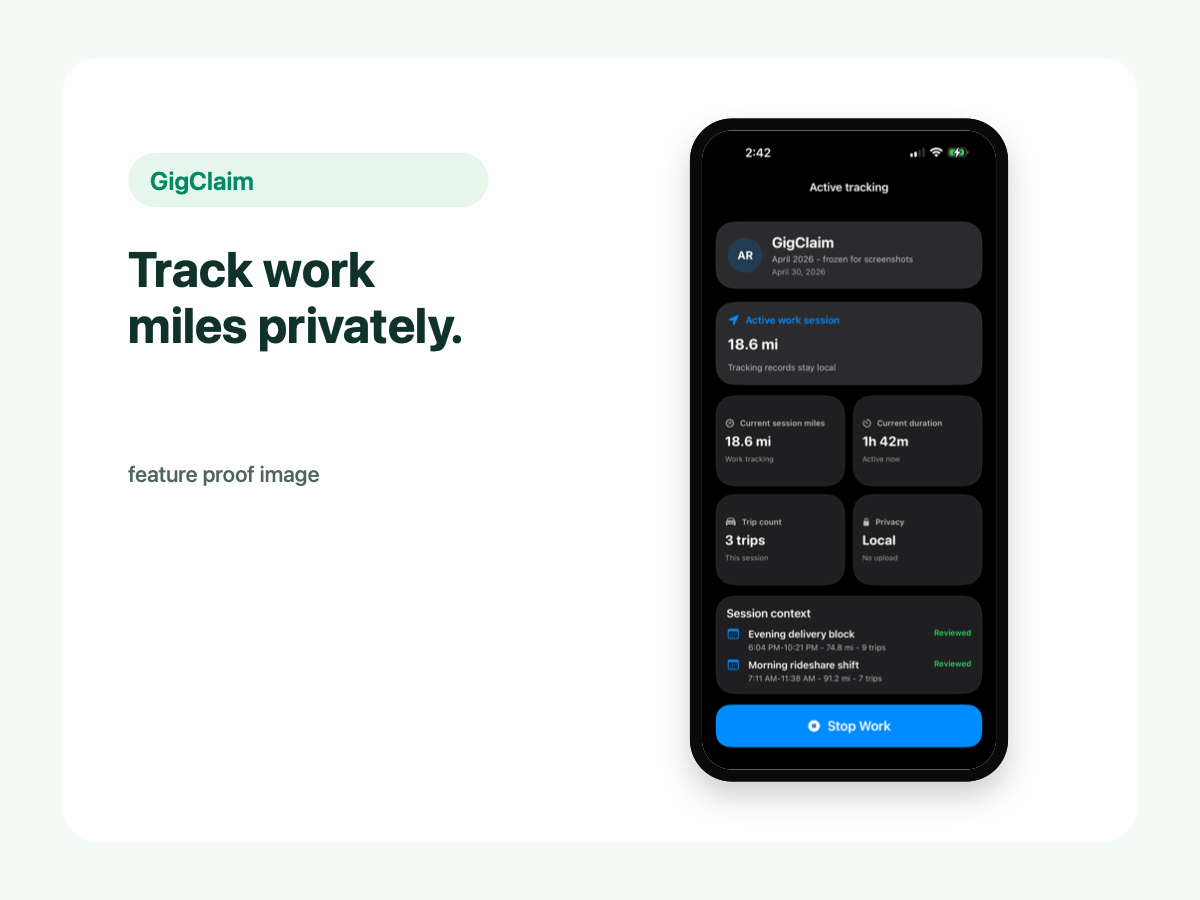
GigClaim is built around reviewable records: track the work session, inspect trips, add missed entries or notes when needed, then export only after the record makes sense.
That workflow is useful for busy delivery and rideshare days where personal errands, weak GPS, parking, tolls, or route changes can make a raw mileage total hard to trust without review.
Quick answer
Driver scenarios
Use these examples as review prompts, not tax conclusions. Your facts still matter.
A scheduled or on-demand period can include waits between orders. Review gaps instead of treating the whole period as one simple trip.
Garages, downtown blocks, and weak signal can affect tracking. Mark uncertain records for review instead of making them look final.
If tracking was interrupted, add a factual missed record or note and review it before export.
Pricing boundary
GigClaim is free to download from the App Store. Starting a new Grubhub work session requires an active Pro subscription or an eligible introductory offer shown by Apple.
Apple determines introductory-offer eligibility and shows the final price, offer terms, and renewal details before purchase.
Delivery sessions
Restaurant delivery work often has gaps between orders. Those gaps should be reviewed instead of automatically treated as one thing.
Use a workflow that lets you inspect dates, distances, classifications, confidence, and notes before export.
GPS limits
Dense restaurant areas, garages, battery saver, and app interruptions can affect location records.
A conservative recordkeeping workflow should flag weak records for review so drivers can correct or explain them where appropriate.
Exports
GigClaim is built so drivers can review locally, then export mileage, expense, earnings, and note records when they choose.
Exports are for record organization and tax-preparation workflows. They are not tax filing or tax advice.
Review checklist
Check gaps between orders, waiting areas, restaurant-to-customer routes, and any repositioning after drop-off.
Review weak-signal records, battery-saver interruptions, manual entries, and notes before export.
Compare mileage with expenses and earnings you chose to log for the same week.
Common mistakes
Downtime may matter for review. Keep gaps visible so you can decide what happened later.
Dense pickup areas can reduce location quality. Use tracking health and notes when a record looks weak.
Parking, tolls, and supplies are easier to understand when logged near the delivery week they relate to.
Restaurant delivery days blur together quickly. Weekly review gives you better records.
Boundaries
FAQ
GigClaim is free to download. Starting a new Grubhub work session requires an active Pro subscription or an eligible introductory offer shown by Apple. Apple shows final eligibility and terms before purchase.
Grubhub may provide some delivery or earnings information, but drivers should keep their own mileage log for tax records. A dedicated tracker helps create a clearer record.
Track business miles related to delivery work, including driving to restaurants, between delivery tasks, and to customer drop-offs. Do not mix personal driving into your delivery log.
Yes. GigClaim helps Grubhub drivers organize mileage records for tax time.