
Mileage records
Track work miles, review trips, and keep records inspectable before export.
Export records guide
A useful export starts before you share a file. Review mileage, trips, expenses, earnings, and notes first so the records you hand to a tax professional are organized and easy to question.
Last reviewed: June 15, 2026
Track work miles, review trips, and keep records inspectable before export.
Mileage, trip, expense, earnings, and tax-planning records are designed to stay on your phone.
Export records only when you choose.
Inside GigClaim
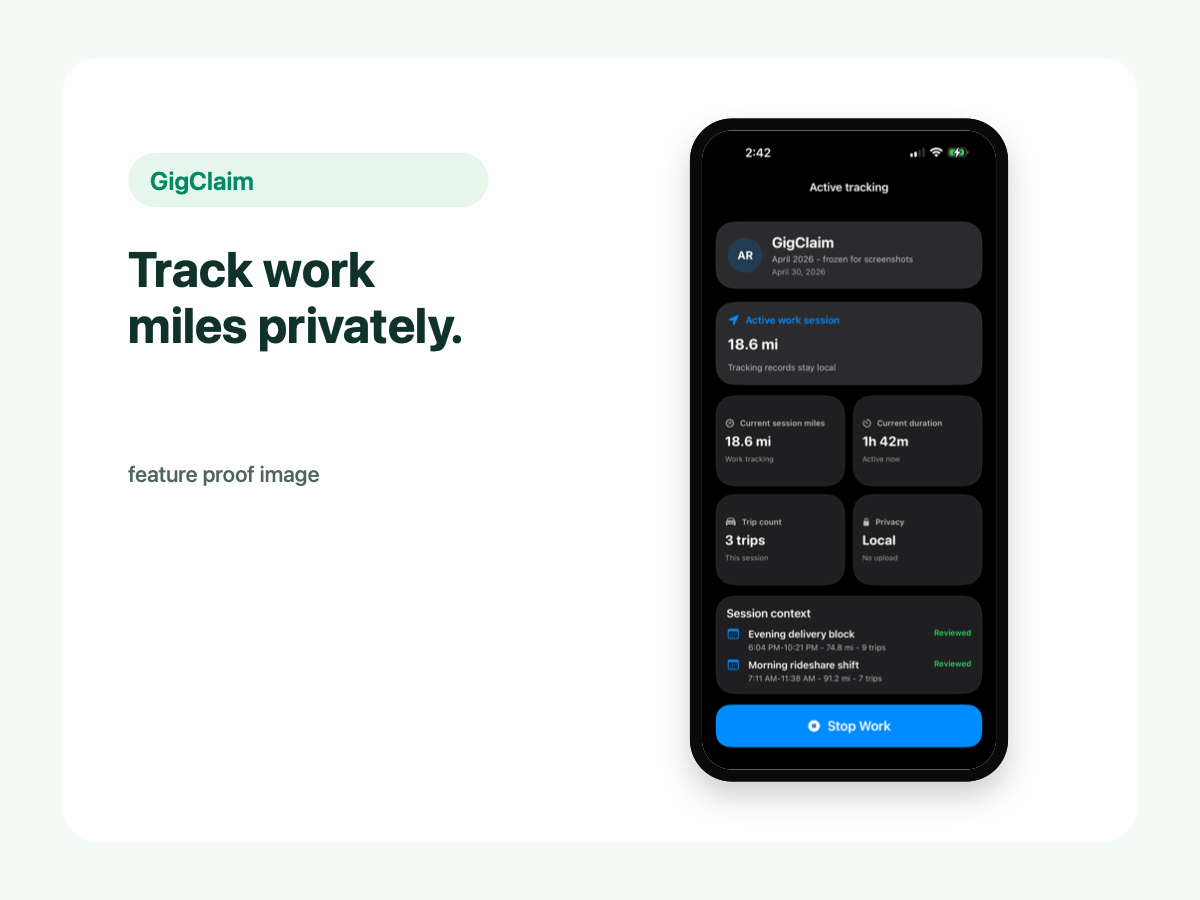
GigClaim is built around reviewable records: track the work session, inspect trips, add missed entries or notes when needed, then export only after the record makes sense.
That workflow is useful for busy delivery and rideshare days where personal errands, weak GPS, parking, tolls, or route changes can make a raw mileage total hard to trust without review.
Quick answer
Driver scenarios
Use these examples as review prompts, not tax conclusions. Your facts still matter.
A cleaner export includes reviewed trips, dates, distances, expenses, earnings, and notes that explain unusual records.
If a route looks wrong or incomplete, add a factual note or manual correction before sharing the file.
Exports can show where and when you worked. Limit the date range and recipient to the actual review need.
Before export
Exports are most useful when the underlying records have already been reviewed. Check the dates, distances, classifications, notes, and any review-needed trips before sending files outside your phone.
If a trip looks uncertain, keep the uncertainty visible. A factual note is better than silently treating a weak record as final.
What to include
A tax professional usually needs clear records, not extra noise. Export the mileage, trip, expense, earnings, and note details that help explain the period you are reviewing.
Do not send sensitive driver records through support unless GigClaim specifically requests them and they are necessary for the support issue.
Privacy
Export files can contain sensitive driver records, including where you drove, when you worked, what you earned, and what expenses you logged.
GigClaim is designed so in-app driver records stay on your phone until you choose to export. Once you share an export, protect it like other sensitive financial records.
Review checklist
Confirm the export covers the intended week, month, quarter, or tax year and excludes unrelated records.
Check classifications, missed trips, manual corrections, and review-needed records before sharing.
Protect export files because they can contain routes, schedules, income context, expenses, and notes.
Common mistakes
If trips still need review, the export may create more questions than answers.
Do not send full trip histories, tax documents, or private driver records unless they are necessary.
Brief notes can explain manual entries, interruptions, unusual waits, or corrected records.
A file for your own review may differ from what a tax professional or other trusted recipient needs.
Boundaries
FAQ
No. GigClaim helps organize driver records and planning estimates. It does not file taxes and does not provide tax, legal, or accounting advice.
No, not unless GigClaim specifically requests them and they are necessary for the support issue. Exports can contain private driver records.
A qualified tax professional can help you apply tax rules to your facts. GigClaim keeps records organized for review, but it does not decide tax treatment.
Related pages